


If you’ve ever upgraded your phone, lost it, or dreaded the thought of reinstalling WhatsApp, you know that awful feeling in your stomach. All those chats, voice notes, and photos can disappear in seconds. It’s a small nightmare no one wants to relive.
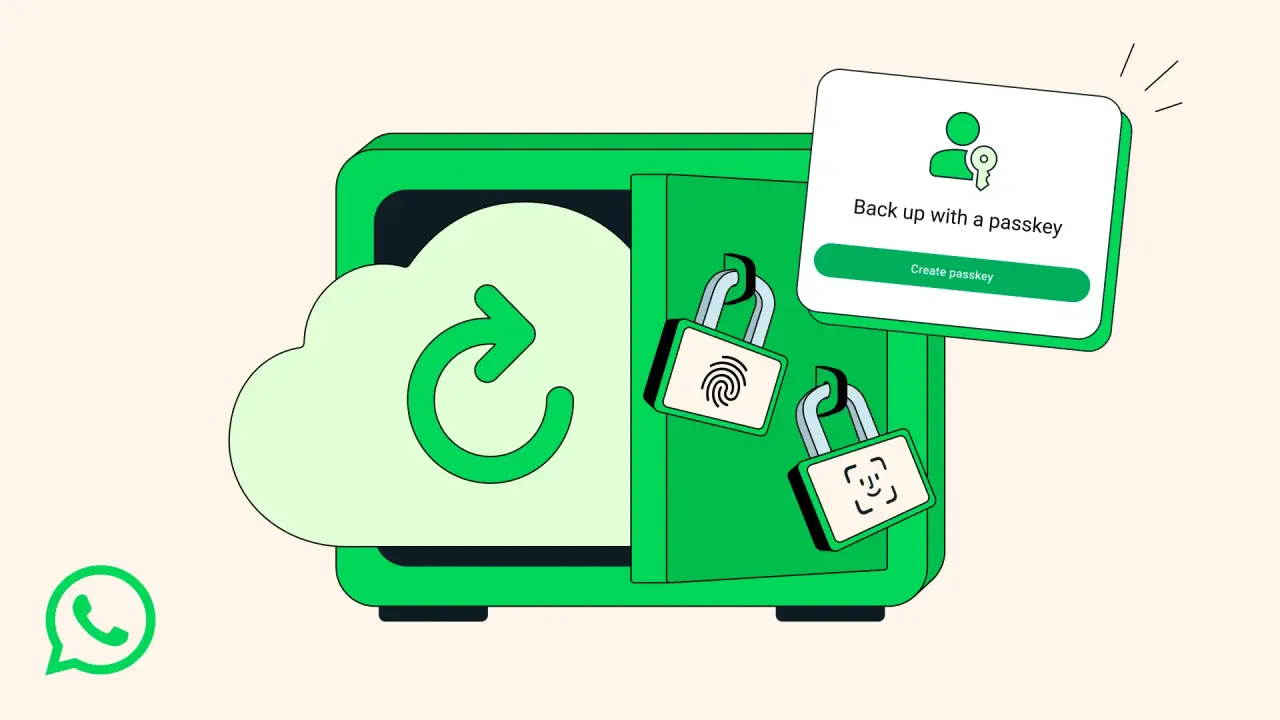
But here’s the good news: WhatsApp is making that worry easier to let go of. The company has introduced passkey protection for encrypted cloud backups, a move that could completely change how we think about backup security.
A Smarter, Simpler Path to Securing Your Chats
For a long time, your only options with WhatsApp backup were:
- Create a password you’d have to remember, or
- Use a 64-digit encryption key generated for you.
Both were secure, but let’s face it, they were also a pain. Forget the password and you’re locked out. Lose the key and there’s no way to restore your chats. Even the tech-savvy found it frustrating.
Now WhatsApp gives you another path: passkey authentication. Instead of typing a password or storing a giant key, you’ll soon be able to restore your chats using your fingerprint, Face ID or screen lock credentials.
That means when you switch phones or reinstall, restoring encrypted cloud backups becomes more like tapping your fingerprint than hunting down an email.
Why Does This Update Change Things for Real Users?
Here’s the real deal. Encrypting backups is nothing new for WhatsApp; they launched end-to-end encrypted backups a while ago. But the restoration process has always been a bit tricky. Enter the passkey update. With it:
- You don’t need to panic if the backup password slips your mind.
- You won’t have to stumble through a 64-digit key to get your chats back.
- You still get full chat backup encryption, even in the cloud (Google Drive or iCloud).
- You don’t sacrifice security for convenience because your biometrics or screen lock still protect you.
In short, WhatsApp keeps its high bar for WhatsApp security, while knocking down the barrier that makes backups feel scary.
Step-by-Step: Enable the New Passkey Option
When the feature hits your device, here’s how you’ll switch it on:
- Open WhatsApp > go to Settings > Chats > Chat backup.
- Tap End-to-End Encrypted Backup.
- Tap Turn On, then choose Create a Passkey.
- Confirm your biometric (fingerprint/Face ID) or screen-lock credentials.
- That’s it. Your backup is now tied to your passkey instead of a password or key.
When you restore, use that passkey (via fingerprint, face, or PIN) and you’re back in business.
What’s Under the Hood: How the Security Works?
This isn’t just a “nice to have” update. It addresses a real pain point. Traditional password or key-based protection is strong, but only if you remember it. The passkey system relies on device-level authentication, something you already use every day, while keeping the encryption engine intact.
WhatsApp emphasises that neither it nor your cloud provider can read your backup; only you can.
Final Thoughts
For anyone who uses WhatsApp to keep chats, photos, and memories safe, this update is a real relief. No need to worry about lost passwords or backups anymore. Get quick, secure access that keeps everything important safe and always easy to reach.
The new passkey protection does more than make backups safer. It makes them simpler and more personal. Your security now rests in your hands, quite literally, through your fingerprint or face.
When the update reaches your phone, take a minute to turn it on. It’s a small step that keeps every message, memory, and moment you care about right where it belongs, with you.