


Google is shaking things up again. Their latest, Google Gemini AI, now lets you share custom Gems, and honestly, it’s a game-changer. Imagine an assistant that can work alongside your team, family, or friends, helping everyone stay coordinated. The Google Gemini app isn’t just a personal helper anymore; it’s turning into a companion you can count on to keep things organised.
What Are Google Gemini AI Gems?
Alright, let’s break it down. Google Gemini AI Gems are like little personal assistants you can customise for almost anything, from keeping your schedule on track and helping with writing to planning a family holiday. Each Gem follows your instructions, so it genuinely feels like your own.
With Google Gemini’s new features, you can now share these Gems with others. This makes a Google Gemini Gems a versatile tool for both personal and team use. Don’t create copies; share your Gem and simplify collaboration.
How to Create Your Own Gemini AI Gems?
- Visit Google Gemini and sign in with your google account to get started.
- Click on Explore Gem in the left side menu and choose + New Gem.
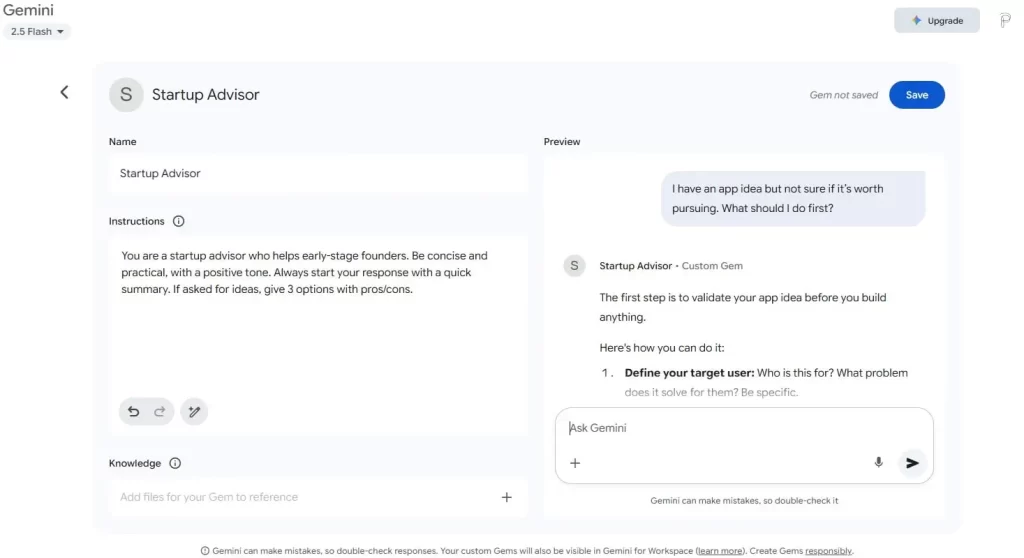
- Name your Gem, something short, specific, and descriptive.
- Examples: “Resume Editor”, “Startup Advisor”, “Marketing Coach”, “Investment Advisor”, “Email Polisher”
- Describe what it should do, in the Instructions.
- This is where you explain how the Gem should behave. You can include:
- Purpose (e.g., “Help me brainstorm creative YouTube video ideas.”)
- Personality (e.g., “Be informal, witty, and encouraging.”)
- Format (e.g., “Always summarize in bullet points.”)
- Constraints (e.g., “Avoid using technical jargon.”)
- This is where you explain how the Gem should behave. You can include:
- Knowledge
- You can optionally upload docs, PDFs, spreadsheets, or even link Google Drive files. The Gem will use these as context in its replies.
- Use the Preview section to test how your Gem responds to different prompts.
- For example, I have an app idea but not sure if it’s worth pursuing. What should I do first?
- Click Save to create your Gem and make it ready to use.
How Sharing Works?
Sharing Gems in the Google Gemini is surprisingly simple:
- Once you have created the Gem, it will prompt you to Share the Gem
- Click on the Share button.
- Add people, choose if people can view or edit your Gem.
- Click on Send or Copy the link and share it with collaborators.
If you want to share later:
- Open the Gemini AI, login with your google account.
- Click on Explore Gems in the left side menu.
- Click on the Share Icon.
- Add people, choose if people can view or edit your Gem.
- Click on Send or Copy the link and share it with collaborators.
Here’s the thing: this new feature makes it easy to share your personalised assistants with colleagues, friends, or family, just like sharing a file on Google Drive. Everyone stays on the same page, and group projects become much simpler.
Why Does This Gemini AI Update Really Matter?
Google hasn’t only made sharing possible, but they’ve made it genuinely practical. The Gemini AI’s new feature updates bring clear benefits for both personal and professional use.
- Enhanced Productivity: One shared Gem is enough to replace several duplicate AI helpers.
- Consistency in Work: Teams can stay coordinated and maintain the same creative voice.
- Time Efficiency: Less setup, more action.
On top of that, these updates make custom AI in Gemini easy to use across various environments. Whether you are using AI in Chrome or other productivity tools, everything works together smoothly. This helps keep your workflow steady and uninterrupted.
Exploring Additional Features of Gemini AI Gems
The latest Gemini AI Updates have new improvements beyond Gem sharing:
- Better at understanding your instructions, so it gives more accurate answers.
- Integration with documents and files for better context.
- An improved layout that helps you manage all your Gemini AI Gems efficiently.
These updates make Gemini more personal and easy to use, so you can get things done smoothly with a truly helpful assistant.
Final Thoughts
Google Gemini AI turns teamwork and task management into a smooth experience. With Gem sharing, teams and families can manage tasks efficiently without duplicating efforts. Create a Gem, add instructions, and everyone has access to the same assistant instantly.
From organising projects to coordinating plans, it keeps everything smooth and on track. Try it out and experience how much easier daily routines can become with a shared AI companion.